Ubuntu VM in VirtualBox as a home for Claude Code

I wanted a disposable Linux machine on my Windows 11 box where Claude Code can run on its own and that I can reach from my phone. Keeping my personal files outside the VM limits its access to my data, though the bidirectional clipboard configured below can still expose copied host data to the guest. A recent Cloud Security Alliance note on prompt injection in Claude Code recommends running agents in a disposable VM. This walkthrough covers creating the VM from the command line, the unattended Ubuntu install, a Hyper-V trap that froze the installer, and starting Claude Code Remote Control on every boot.
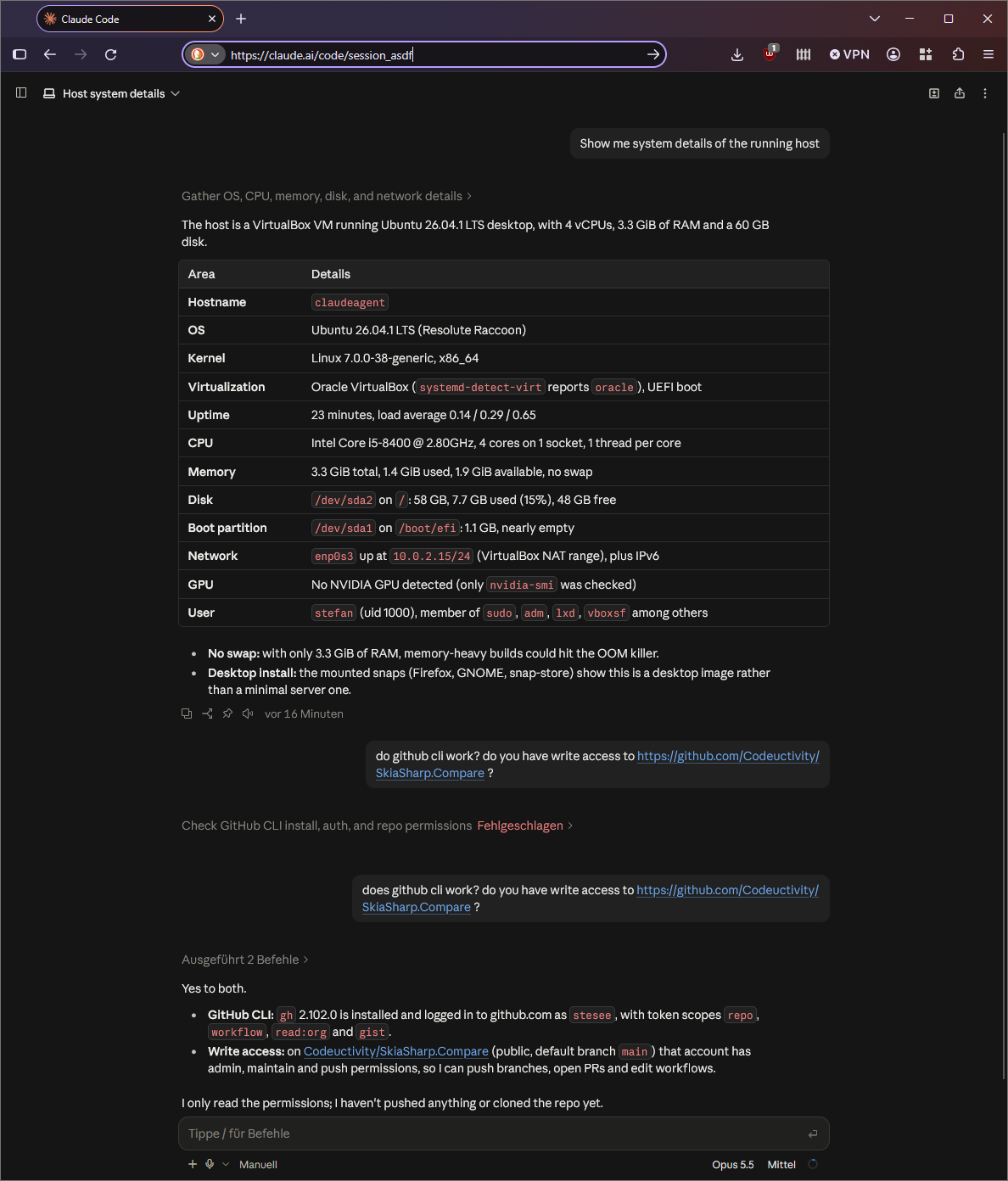
What I used
- Windows 11 Pro host, 6 cores, 16 GB RAM
- VirtualBox 7.2.20
ubuntu-26.04.1-desktop-amd64.iso- PowerShell 7 on the host
Everything below is done with VBoxManage, so it can be repeated without clicking through dialogs.
$m   = 'C:\Program Files\Oracle\VirtualBox\VBoxManage.exe'
$n   = 'ClaudeAgent'
$iso = "$env:USERPROFILE\Downloads\ubuntu-26.04.1-desktop-amd64.iso"
Create the VM
4 GB RAM, 4 cores, EFI firmware, NAT networking and a 60 GB dynamically allocated disk.
$disk = "$env:USERPROFILE\VirtualBox VMs\$n\$n.vdi"

& $m createvm --name $n --ostype Ubuntu_64 --register
& $m modifyvm $n --memory 4096 --cpus 4 --vram 128 --graphicscontroller vmsvga `
     --firmware efi --ioapic on --nic1 nat --clipboard-mode bidirectional `
     --boot1 dvd --boot2 disk --boot3 none --boot4 none

& $m createmedium disk --filename $disk --size 61440 --format VDI --variant Standard
& $m storagectl $n --name SATA --add sata --controller IntelAhci --portcount 2 --bootable on
& $m storageattach $n --storagectl SATA --port 0 --device 0 --type hdd --medium $disk --nonrotational on
& $m storageattach $n --storagectl SATA --port 1 --device 0 --type dvddrive --medium $iso
A dynamically allocated disk only uses what the guest has written (about 9 GB after the install). The 60 GB is a limit, not a reservation - if the host has less free space than that, the host runs full before the VM does. An existing disk can be grown later with VBoxManage modifymedium disk <file> --resize <MB>.
Unattended install
VirtualBox can install Ubuntu without a single click. First check that it recognizes the ISO:
& $m unattended detect --iso $iso
It reported Unattended installation supported = yes and the OS type Ubuntu25_64 (7.2.20 has no profile for 26.04 yet). Then start the install. The password comes from a file, so it does not end up in the shell history:
$pwFile = "$env:USERPROFILE\VirtualBox VMs\$n\initial-password.txt"
Set-Content -Path $pwFile -Value 'choose-a-password' -NoNewline -Encoding ascii

& $m modifyvm $n --ostype Ubuntu25_64
& $m unattended install $n --iso $iso `
     --user stefan --full-user-name 'Stefan' --password-file $pwFile `
     --hostname claudeagent.local --locale en_US --country AT --time-zone Europe/Vienna `
     --install-additions --start-vm=gui
--install-additions also installs the VirtualBox Guest Additions, which are needed for clipboard sharing, screen resizing and for running commands in the guest from the host (see below).
Delete the password file once the install is done and the password is changed.
The Hyper-V trap: installer hangs at raid6: avx2x4 gen()
The VM booted the installer and then sat there. The last line on screen stayed raid6: avx2x4 gen() for minutes, with one CPU core at 100 %.
The reason is in VBox.log:
HM: HMR3Init: Attempting fall back to NEM: VT-x is not available
Hyper-V was active on the host (Hyper-V services, WSL 2 and virtualization-based security all need it). VirtualBox then cannot use VT-x directly and runs the VM through the Windows Hypervisor Platform instead. With the default paravirtualization interface, the Ubuntu kernel never gets out of an early timing loop.
The fix is one setting on the VM - the host stays untouched:
& $m controlvm $n poweroff
& $m modifyvm $n --paravirt-provider hyperv
& $m startvm $n --type gui
After that the installer ran through, rebooted into the installed system and ended at the login screen.
Two more things I learned on the way:
- Disabling x2APIC (
--x2apic off) does not help. The VM refuses to start withCannot disable the APIC for a 64-bit guest. - VMs in this mode are noticeably slower than with native VT-x. Full speed needs Hyper-V turned off on the host, which also takes WSL 2 away.
Running commands in the guest from the host
With Guest Additions running, VBoxManage guestcontrol executes commands inside the VM. That is enough to do the whole post-install setup without touching the VM window.
& $m guestcontrol $n --username stefan --password 'your-password' `
     run --exe /bin/bash -- -c "id; uname -r"
In VirtualBox 7.2 the arguments after -- are the real arguments, without a leading program name. Writing -- bash -c "..." ends in cannot execute binary file.
For anything longer than one line, copy a script into the guest and run it:
& $m guestcontrol $n --username stefan --password 'your-password' `
     copyto .\setup.sh --target-directory /tmp/
& $m guestcontrol $n --username stefan --password 'your-password' `
     run --exe /bin/bash -- /tmp/setup.sh
Save such scripts with LF line endings, otherwise bash trips over the \r.
Post-install setup
Run as root inside the VM (sudo bash root.sh):
export DEBIAN_FRONTEND=noninteractive

# German keyboard, system-wide and on the login screen
localectl set-x11-keymap de pc105

# The unattended install did not apply the time zone
timedatectl set-timezone Europe/Vienna

# Third-party codecs and fonts, with the Microsoft font licence pre-accepted
apt-get -y update
echo "ttf-mscorefonts-installer msttcorefonts/accepted-mscorefonts-eula select true" | debconf-set-selections
apt-get -y install curl ubuntu-restricted-extras

# Additional drivers
ubuntu-drivers install

# Access to VirtualBox shared folders
usermod -aG vboxsf stefan

# New password
echo 'stefan:your-new-password' | chpasswd
The GNOME desktop keeps its own keyboard layout per user, and the installer leaves it at us. Setting it before the first login does not stick - the first login overwrites it. So log in once, then run this in a terminal as the normal user:
gsettings set org.gnome.desktop.input-sources sources "[('xkb', 'de')]"
sudo sed -i 's/^xkb=us$/xkb=de/' /var/lib/AccountsService/users/stefan
sudo systemctl restart accounts-daemon
The first line switches the running desktop immediately, the other two change the layout stored for the account.
Notes:
ubuntu-drivers installfound nothing butopen-vm-tools-desktopfor this virtual hardware. Those are the VMware guest tools - harmless, but of no use under VirtualBox.- To check the Guest Additions:
systemctl is-active vboxadd vboxadd-serviceandlsmod | grep vboxshould showvboxguest,vboxsfandvboxvideo. - The keyboard layout on the login screen changes after the next restart.
Install Claude Code
As the normal user:
curl -fsSL https://claude.ai/install.sh | bash
~/.local/bin/claude --version
The installer puts claude into ~/.local/bin. Ubuntu only adds that folder to the PATH at login, so claude is not found until you log out and in again (or reboot).
Use it from the phone or a browser: Remote Control
Remote Control links a Claude Code session running in the VM to the Claude mobile app. The session, its files and its tools stay in the VM; the phone is a window onto it.
claude auth login        # once, with a claude.ai subscription account
claude remote-control    # shows a link and a QR code
It only makes outbound HTTPS connections. The VM's NAT networking is enough - no port forwarding, no bridged adapter.
Open the session on Android
- Install the Claude app from the Play Store and sign in with the same claude.ai account that is signed in inside the VM.
- Open the Code section of the app. The session running in the VM is listed there - tap it.
- Alternatively scan the QR code: in the terminal where
claude remote-controlruns, press the space bar to show it. With the autostart setup below,tmux attach -t claudein the VM gets you to that terminal.
The same works with the Claude app on iOS.
Open the session in any browser
- Go to claude.ai/code and sign in with the same account.
- Pick the session from the list. It is named after the VM, for example
claudeagent-optimized-bird. - Or open the link directly.
claude remote-controlprints it in its terminal:
·✔︎· Connected · workspace · HEAD
    claudeagent-optimized-bird
Continue coding in the Claude mobile app or https://claude.ai/code?environment=env_...
space to show QR code
With the autostart setup below, that terminal is the tmux session: run tmux attach -t claude in the VM to see the link, and leave again with Ctrl+B, then D.
No app, extension or VPN is needed - any current browser on any device works, including the phone's browser.
Good to know
- Same account everywhere: the session only shows up for the account that is signed in inside the VM.
- One session, many windows: phone, browser and the terminal in the VM show the same conversation. What you type in one appears in the others.
- Everything runs in the VM: commands, file edits and permission prompts happen there. The phone only sends your messages and shows the output.
- The VM has to be up: if the VM or the Windows host is off or asleep, the session is not listed or shows as disconnected. It comes back when the VM is running again.
- Not listed? Check in the VM with
tmux attach -t claudewhether Remote Control is running or waiting at a prompt, and runclaude auth loginif it reports that it is not signed in.
Start Remote Control at boot
The goal: the VM boots, nobody logs in, and the session is reachable anyway.
Install tmux and allow services of the user to run without a login:
sudo apt-get -y install tmux
sudo loginctl enable-linger stefan
mkdir -p ~/workspace ~/.local/bin ~/.config/systemd/user
A small loop that restarts Remote Control if it exits, saved as ~/.local/bin/claude-remote-loop and made executable with chmod +x:
#!/bin/bash
# Keeps Claude Code Remote Control running; restarts it if it exits (e.g. not signed in yet).
# Ctrl+C stops claude but not this loop.
trap : INT
cd "$HOME/workspace" || exit 1
while true; do
  "$HOME/.local/bin/claude" remote-control
  echo "claude remote-control exited ($?), retrying in 30s - run 'claude auth login' if not signed in"
  sleep 30
done
The user service, saved as ~/.config/systemd/user/claude-remote.service:
[Unit]
Description=Claude Code Remote Control (in tmux session "claude")
After=network-online.target

[Service]
Type=forking
ExecStart=/usr/bin/tmux new-session -d -s claude %h/.local/bin/claude-remote-loop
ExecStop=/usr/bin/tmux kill-session -t claude
Restart=always
RestartSec=10

[Install]
WantedBy=default.target
Enable it and stop the VM from going to sleep:
systemctl --user daemon-reload
systemctl --user enable --now claude-remote.service
gsettings set org.gnome.settings-daemon.plugins.power sleep-inactive-ac-type 'nothing'
Running it inside tmux has a second benefit: tmux attach -t claude shows the live session in a terminal, for example to confirm the first-run prompts. Detach again with Ctrl+B, then D.
Add a swap file
4 GB of RAM is not much for a GNOME desktop plus Claude Code plus whatever the agent builds or tests. When memory runs out, the kernel kills a process - often the build, sometimes the session itself. A swap file gives it room to breathe. Check first what is there:
swapon --show
free -h
An 8 GB swap file on the ext4 root disk:
sudo swapoff -a                       # in case /swapfile exists and is in use
sudo fallocate -l 8G /swapfile
sudo chmod 600 /swapfile
sudo mkswap /swapfile
sudo swapon /swapfile
To activate it at every boot it needs a line in /etc/fstab. Add it only if it is not there yet:
grep -q '^/swapfile ' /etc/fstab || echo '/swapfile none swap sw 0 0' | sudo tee -a /etc/fstab
After that swapon --show lists /swapfile with 8G. Inside the VM the 8 GB are reserved right away. The .vdi on the host only grows as swap is actually written.
Swap is a safety net, not more memory: once the VM swaps heavily it gets slow. If that happens regularly, give the VM more RAM instead (VBoxManage modifyvm ClaudeAgent --memory 6144 while it is powered off).
Let the agent use sudo
Installing a package or restarting a service needs sudo, and sudo asks for a password. A session driven from the phone has no terminal to type it into, so the command just fails with sudo: a terminal is required to read the password.
In this VM the agent may use sudo without a password. The rule goes into its own file below /etc/sudoers.d, written through visudo so that a typo cannot lock sudo up:
echo 'stefan ALL=(ALL) NOPASSWD: ALL' | sudo EDITOR='tee' visudo -f /etc/sudoers.d/90-stefan-nopasswd
sudo chmod 0440 /etc/sudoers.d/90-stefan-nopasswd
This asks for the password one last time. visudo checks the syntax before it saves; 0440 is the file mode /etc/sudoers.d/README asks for. Check the result with:
sudo -k              # forget the cached password
sudo -n true && echo "passwordless sudo works"
sudo -l              # lists "(ALL) NOPASSWD: ALL"
The file name matters: files in /etc/sudoers.d are read in alphabetical order and the last matching rule wins, so 90-... comes after the default %sudo ALL=(ALL:ALL) ALL rule from /etc/sudoers.
This makes the agent root in the VM - which is the reason for giving it a VM of its own. Do not do this on a machine that holds anything you care about. Claude Code's own permission prompts stay in place: it still asks before it runs a sudo command, unless the permission mode or an allow rule covers it.
To take it back, delete the file: sudo rm /etc/sudoers.d/90-stefan-nopasswd.
Start the VM with Windows
To start the VM in the background at every Windows logon:
schtasks /Create /TN "ClaudeAgent VM" /SC ONLOGON /TR "'C:\Program Files\Oracle\VirtualBox\VBoxManage.exe' startvm ClaudeAgent --type headless"
A headless VM has no window, but one can be attached at any time: select the VM in the VirtualBox Manager and click Show, or run VBoxManage startvm ClaudeAgent --type separate. When closing that window, pick Continue running in the background - the other options stop the VM and with it the Remote Control session.
Remove the task again with schtasks /Delete /TN "ClaudeAgent VM".
What to keep in mind
- Memory: the VM reserves its 4 GB while it runs. On a 16 GB host that is noticeable; during the install my host ran critically low on free memory.
- Disk: the dynamic disk grows up to 60 GB, and the swap file can account for 8 GB of it. Keep an eye on free space on the host.
- Speed: with Hyper-V active on the host, the VM runs in the slower fallback mode. It works, but it is not fast.
- Root in the VM: with passwordless
sudothe agent can change anything inside the VM. Shared folders and the bidirectional clipboard are the paths back to the host - keep them as narrow as you need them. - Host must stay awake: if Windows sleeps, the VM and the session are gone until it wakes up.
For questions or feedback, contact us at Codeuctivity@gmail.com.